The other day I came across this awesome program by accident
(I don’t even remember what I was actually searching for, but on the several
times I’ve looked for a program like this I’ve had no luck). It’s cool enough that I wanted to share it.
It’s called DesignDoll (website here) and it’s a program that lets you shape and pose a human figure pretty much however you want.
There’s a trial version with no expiration date that can be
downloaded for free, as well as the “pro license” version priced at $79.
I’ve only had the free version for two days so far, so I’m not an expert and I
haven’t figured out all of the features yet, but I’ve got the basics down. The
website’s tutorials are actually pretty helpful for the basics, as well.
Here’s the page for download, which has a list of the
features available in both versions.
There are three features the free version doesn’t have:
Can’t save OBJ files for export
Can’t download models and poses from Doll
Atelier (a sharing site for users; note that the site is in Japanese, though)
It can’t load saved files
The third one means that if you make a pose, save it, and
close the program, you can’t load that
pose/modified model later. You have to start with the default model. I
found that out when I tried to load a file from the day before (this is why
reading is important…). Whether saving your modifications (and downloading models and poses) is worth $80 is up to you.
But, the default
model is pretty nice and honestly if all you’re looking for is a basic pose reference
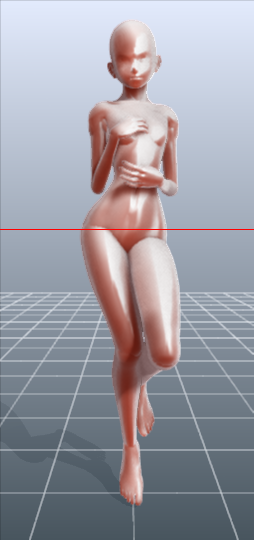
it should work fairly well as it is. Here’s what it looks like:
There’s a pose tag
that lets you drag each joint into place and rotate body parts. The torso and
waist can be twisted separately, and it seems like everything pretty much
follows the range of movement it would have on an actual human.
Even the entire shoulder area is actually movable along with the joint! See, like how the scapular area of the back raises with the arm:
The morphing tag
is one of the coolest features, in my opinion. It lets you pick and choose from
a library of pre-set forms for the head, chest, arms, legs, etc. It has some more realistic body shapes in addition to more anime-like ones. Don’t like the
options there? Mix a few to get what you want! Each option has a slider that
lets you blend as much or as little as you want into the design.
So you, too, can create beautiful things like kawaii
Muscle-chan!!
The scale tag
lets you mess with the proportions and connection points of different joints. This
feature combined with the morphing feature not only allows more body shape
variations, but it also means that you can do things like make a more digitigrade
model if you want. (The feet only have an ankle joint, but for regular human poses that’s all that you really need, so whatever.)
Or you can make a weird chubby alien-like thing with giant
hands and balloon tiddies if that’s more your thing.
The ability to pose
hands to the extent it allows is far more than I could have hoped for from
a free program. Seriously, you can change the position of each finger joint individually, as well as how spread out the fingers are from each other. Each crease on the diagram below is a point of movement, and the circles are for spread between fingers.
And to make it a bit more convenient, there’s a library of pre-set hand poses you can pick from as well, and then change the pose from that if you like.
In both versions, you can also import OBJ files from other places for the model to hold, like if you wanted to have them hold a sword or something.
Basically, this program is awesome and free and you should
totally check it out if you want a good program for creating pose references.
I just wanted to add a little more to this. If you have trouble figuring out how light sources work in your drawings this also allows you to choose where to have a light source.
That shaded ball on the left is your light source. You can see how moving the point changed the shadow cast.
Oh and all those other nifty looking things in that bottom bar there, yeah it’s what you think. You can change the model color to one of these presets or even customize your own palette.
Plus for all you lovely people who want something a little more simplified to use as a pose reference
You can turn your model into the classic wire frame.
Why reblog this? Because for more visual creators, this will be like the lumberjack discovering chainsaws. “Reblog to save lives” as the saying goes.
There was an update recently even for free users that adds sliders for toes too if you want to get that extra mobility in the model so they don’t have to be totally flat footed.
Holy crap, that’s a fantastic addition.
(Also the program is still Windows only last I checked. I forgot to mention that in the original post, sorry.)
so i downloaded the program DesignDoll cos it looked cool and i figured hey, it might come out handy to create some pose references for my pictures n stuff
The other day I came across this awesome program by accident
(I don’t even remember what I was actually searching for, but on the several
times I’ve looked for a program like this I’ve had no luck). It’s cool enough that I wanted to share it.
It’s called DesignDoll (website here) and it’s a program that lets you shape and pose a human figure pretty much however you want.
There’s a trial version with no expiration date that can be
downloaded for free, as well as the “pro license” version priced at $79.
I’ve only had the free version for two days so far, so I’m not an expert and I
haven’t figured out all of the features yet, but I’ve got the basics down. The
website’s tutorials are actually pretty helpful for the basics, as well.
Here’s the page for download, which has a list of the
features available in both versions.
There are three features the free version doesn’t have:
Can’t save OBJ files for export
Can’t download models and poses from Doll
Atelier (a sharing site for users; note that the site is in Japanese, though)
It can’t load saved files
The third one means that if you make a pose, save it, and
close the program, you can’t load that
pose/modified model later. You have to start with the default model. I
found that out when I tried to load a file from the day before (this is why
reading is important…). Whether saving your modifications (and downloading models and poses) is worth $80 is up to you.
But, the default
model is pretty nice and honestly if all you’re looking for is a basic pose reference
it should work fairly well as it is. Here’s what it looks like:
There’s a pose tag
that lets you drag each joint into place and rotate body parts. The torso and
waist can be twisted separately, and it seems like everything pretty much
follows the range of movement it would have on an actual human.
Even the entire shoulder area is actually movable along with the joint! See, like how the scapular area of the back raises with the arm:
The morphing tag
is one of the coolest features, in my opinion. It lets you pick and choose from
a library of pre-set forms for the head, chest, arms, legs, etc. It has some more realistic body shapes in addition to more anime-like ones. Don’t like the
options there? Mix a few to get what you want! Each option has a slider that
lets you blend as much or as little as you want into the design.
So you, too, can create beautiful things like kawaii
Muscle-chan!!
The scale tag
lets you mess with the proportions and connection points of different joints. This
feature combined with the morphing feature not only allows more body shape
variations, but it also means that you can do things like make a more digitigrade
model if you want. (The feet only have an ankle joint, but for regular human poses that’s all that you really need, so whatever.)
Or you can make a weird chubby alien-like thing with giant
hands and balloon tiddies if that’s more your thing.
The ability to pose
hands to the extent it allows is far more than I could have hoped for from
a free program. Seriously, you can change the position of each finger joint individually, as well as how spread out the fingers are from each other. Each crease on the diagram below is a point of movement, and the circles are for spread between fingers.
And to make it a bit more convenient, there’s a library of pre-set hand poses you can pick from as well, and then change the pose from that if you like.
In both versions, you can also import OBJ files from other places for the model to hold, like if you wanted to have them hold a sword or something.
Basically, this program is awesome and free and you should
totally check it out if you want a good program for creating pose references.
it would have been nice if OP had pointed out that this is windows-only…
I know, I didn’t even think about checking for a Mac-compatible version until after people pointed it out (because I have Windows and the thought just never crossed my mind). I edited the post afterward adding that it’s Windows only but the original version was already going around so it didn’t really matter at that point. I really do feel bad about all the letdowns, though.
There is a similar but more detailed (and very realistic models) program called DAZ3D that does in fact have a Mac version. I just double checked. It is free as well, although if you want you can purchase more models to use from their online store. I only played with it briefly and the user interface is a bit more complicated but the posing works similarly. I can’t link or add images because I’m on mobile but it might be worth checking out.
The other day I came across this awesome program by accident
(I don’t even remember what I was actually searching for, but on the several
times I’ve looked for a program like this I’ve had no luck). It’s cool enough that I wanted to share it.
It’s called DesignDoll (website here) and it’s a program that lets you shape and pose a human figure pretty much however you want.
There’s a trial version with no expiration date that can be
downloaded for free, as well as the “pro license” version priced at $79.
I’ve only had the free version for two days so far, so I’m not an expert and I
haven’t figured out all of the features yet, but I’ve got the basics down. The
website’s tutorials are actually pretty helpful for the basics, as well.
Here’s the page for download, which has a list of the
features available in both versions.
There are three features the free version doesn’t have:
Can’t save OBJ files for export
Can’t download models and poses from Doll
Atelier (a sharing site for users; note that the site is in Japanese, though)
It can’t load saved files
The third one means that if you make a pose, save it, and
close the program, you can’t load that
pose/modified model later. You have to start with the default model. I
found that out when I tried to load a file from the day before (this is why
reading is important…). Whether saving your modifications (and downloading models and poses) is worth $80 is up to you.
But, the default
model is pretty nice and honestly if all you’re looking for is a basic pose reference
it should work fairly well as it is. Here’s what it looks like:
There’s a pose tag
that lets you drag each joint into place and rotate body parts. The torso and
waist can be twisted separately, and it seems like everything pretty much
follows the range of movement it would have on an actual human.
Even the entire shoulder area is actually movable along with the joint! See, like how the scapular area of the back raises with the arm:
The morphing tag
is one of the coolest features, in my opinion. It lets you pick and choose from
a library of pre-set forms for the head, chest, arms, legs, etc. It has some more realistic body shapes in addition to more anime-like ones. Don’t like the
options there? Mix a few to get what you want! Each option has a slider that
lets you blend as much or as little as you want into the design.
So you, too, can create beautiful things like kawaii
Muscle-chan!!
The scale tag
lets you mess with the proportions and connection points of different joints. This
feature combined with the morphing feature not only allows more body shape
variations, but it also means that you can do things like make a more digitigrade
model if you want. (The feet only have an ankle joint, but for regular human poses that’s all that you really need, so whatever.)
Or you can make a weird chubby alien-like thing with giant
hands and balloon tiddies if that’s more your thing.
The ability to pose
hands to the extent it allows is far more than I could have hoped for from
a free program. Seriously, you can change the position of each finger joint individually, as well as how spread out the fingers are from each other. Each crease on the diagram below is a point of movement, and the circles are for spread between fingers.
And to make it a bit more convenient, there’s a library of pre-set hand poses you can pick from as well, and then change the pose from that if you like.
In both versions, you can also import OBJ files from other places for the model to hold, like if you wanted to have them hold a sword or something.
Basically, this program is awesome and free and you should
totally check it out if you want a good program for creating pose references.
I just wanted to add a little more to this. If you have trouble figuring out how light sources work in your drawings this also allows you to choose where to have a light source.
That shaded ball on the left is your light source. You can see how moving the point changed the shadow cast.
Oh and all those other nifty looking things in that bottom bar there, yeah it’s what you think. You can change the model color to one of these presets or even customize your own palette.
Plus for all you lovely people who want something a little more simplified to use as a pose reference
You can turn your model into the classic wire frame.
wtf….
WHOA that last one is new to me!
I figured out something new (I mean, new to me, at least) with DesignDoll a minute ago. See this little arrow at the bottom of the screen?
Turns out you can change the color/material of the model.
Andyou can change the light source by dragging the highlight on the sphere shape next to the color options. Ha!
About the little icons next to the sphere: I have no idea what the cube one at the top does. The second one appears to show or hide the figure’s shadow on the ground, the third one (the grid) shows or hides the grid “ground”, and the bottom cube does something to the way the perspective looks. I’m not sure what exactly it does or what the correct technical term is but it makes it look flat almost.
Also, idk if I’ve mentioned it before but the little yellow bars in the corner of each box are sliders that let you adjust how large or small the icons are, just fyi.
The pictures above are simply there to show the issues I’m having with the program.
As one can see, I am unable to alter or post the hands and the buttons in the menu/interface are missing their names or are partially shown. I had already uninstalled and reinstalled it twice now and TeraWell doesn’t explain what to do in this sort of situation.
If anyone can help me in this situation, I would greatly appreciate it. Other that these known issues, the program works fine and I’m able to save/export any poses I’ve made.
Okay, now that’s really weird. I have not seen this happen. I assume this is the problem that the last person who sent an ask was having and I didn’t understand.
I feel like the annoying “did you try turning it off and back on again” person saying this, but the only suggestion I have is uninstalling and reinstalling to see if maybe it just didn’t install some of the files correctly. I’m limited in my understanding of computer stuff so that’s the best I have, unfortunately.
Actually, you can delete the tags in the top right corner (the hand, pose, morph icons and whatnot, of which you have the hand tag selected here) by right clicking, I believe. If you do that, then in the upper left select Item -> Add Tag -> Hand Tag to try “restarting” that tag, essentially. I suppose it’s always possible the Hand tool just loaded wrong on start up, so it’s worth a shot.
I want to reiterate that I’m in no way associated with Terawell and I just shared the program because it was a cool thing I found. So I only know what I’ve figured out myself. As far as weird mishaps like this or installation issues, I didn’t run into any, so all I can really offer is my best guess on things. And I don’t mean that to come across as me being like “stop asking me things omg”, because I really don’t mind questions and I’m happy to try to help. I just want to make sure people know I can’t necessarily offer a solution for technical problems.
Sorry this took so long for me to respond to! I think I know what you’re asking so I’m going to try my best to answer it.
Okay so first off, the menu/tools on the right hand side (and the left one too) can be dragged to make it take up more or less of the screen. It’s possible to entirely minimize it where you can’t even tell there’s a menu there, like I did here:
So I’d say first be sure that isn’t what’s going on in your case. If not, I’m not sure what else to try.
You said you’re able to move the hand somewhat, so you may already know this, but this here is the hand tool:
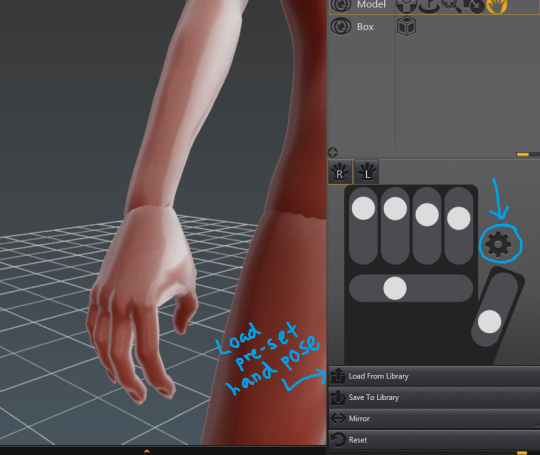
If it isn’t in the menu on the right, go to the top left to Item -> Add Tag -> HandTag and it should add that icon. When you click on the Hand Tag icon, the screen should look like this:
“Load From Library” lets you pick one of the pre-set hand poses. The mode it’s in right now lets you change how much each finger is bent. The screw icon that I’ve circled will make it look like this:
THIS one lets you change the position of each joint on the fingers separately, as well as how spread out the fingers are from each other.
If you click on “Mirror” down at the bottom, you can make the Left hand match the Right hand and vice versa.
I hope this was at least somewhat useful! If I didn’t answer the question just reblog this or send me another ask!





 PiraticOctopus